


Your AdSense account is approved. Congratulations! The next step is to place AdSense ads on your pages. There are two ways to do it: Auto ads and ad units. In this tutorial we explain both, show where the code goes and share a few tips on placement.
Before you place AdSense ads
First, make sure the basics are ready.
- Your site is added and approved in AdSense. If not, read how to apply for Google AdSense.
- You can edit the code of your website, or you use a plugin that can.
- Your ads.txt file is published.
Auto ads and ad units: what is the difference?
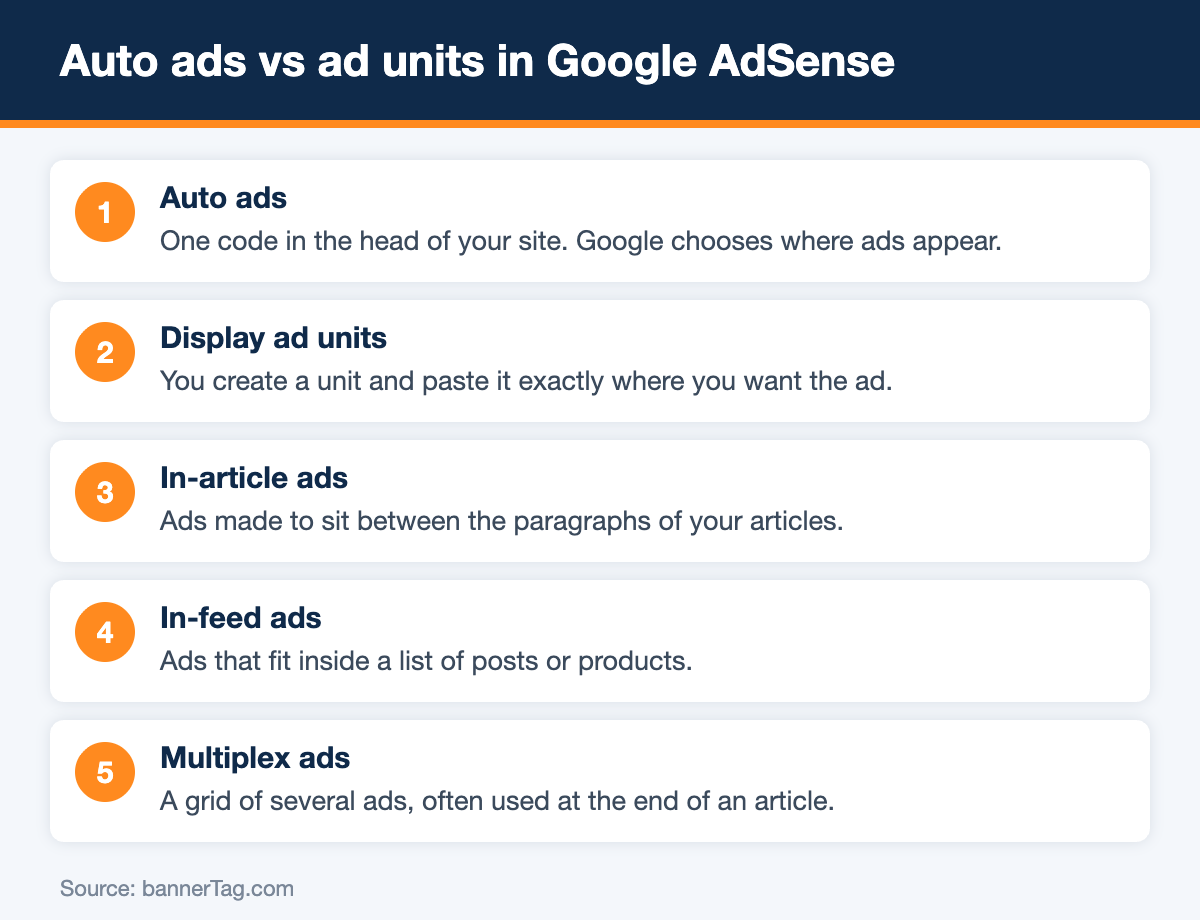
Auto ads are the automatic option. You add one code, and Google decides where ads appear. In contrast, ad units are manual. You create each unit and paste it into an exact spot. Many websites use both together.
How to place AdSense ads with Auto ads
Auto ads are the fastest way to start. Follow these steps.
- First, sign in to AdSense and open the Ads page.
- Next, find your site in the list and click the edit icon.
- Then turn on Auto ads in the settings panel.
- After that, choose the formats you want, for example in-page ads, anchor ads and vignettes.
- Set how many ads Google may show with the ad load control.
- Finally, apply the changes to your site.
Now copy the AdSense code and paste it between the head tags of every page. If the code is already there from the approval step, you do not need to add it again. Ads usually start to appear within an hour.
Exclude pages from Auto ads
Sometimes ads do not fit a page. For example, a contact page or a checkout page. In that case, add the page to the exclusions list in the Auto ads settings.
How to place AdSense ads with ad units
Ad units give you full control. Therefore they are perfect for your best positions.
- First, open Ads and choose the By ad unit tab.
- Next, pick a type: display, in-feed, in-article or multiplex.
- Then give the unit a clear name, such as “Article top”.
- Keep the size responsive. As a result, the ad fits every screen.
- Click create and copy the code.
- Finally, paste the code into the HTML where the ad should show.
The official AdSense Help Center describes every ad type in detail.
Place AdSense ads on WordPress
WordPress users do not have to edit theme files. Instead, there are easier options.
- Site Kit by Google. The official plugin connects AdSense and adds the code for you.
- Custom HTML widget. Paste an ad unit into a sidebar or footer widget.
- Custom HTML block. Add a unit inside any post in the editor.
- Ad plugins. They insert ads after a chosen paragraph on all posts at once.
Best places for AdSense ads
Good placement means more views and more income. However, do not cover your content with ads.
- Put one unit above the fold, close to the title.
- Add in-article units inside long posts.
- Use a sidebar unit on desktop.
- Place a multiplex unit at the end of articles.
- Pick sizes that advertisers like. See the best desktop ad sizes.
Mistakes to avoid
- Do not click your own ads, not even to test them.
- Do not ask visitors to click.
- Do not place ads next to buttons where people click by accident.
- Do not change the ad code in ways that Google does not allow.
Breaking these rules can limit your account. If that happens, read how to fix limited ad serving.
Conclusion
It takes only a few minutes to place AdSense ads on a website. Start with Auto ads, because they need just one code. Then add manual ad units in your strongest positions. Finally, check the reports every week and keep what works. Want to earn more later? Then read our tips on how to earn revenue with Google AdSense.